
Published on December 7, 2025•2 min read
Step-by-Step: Add Figabytes to Your iPhone Home Screen
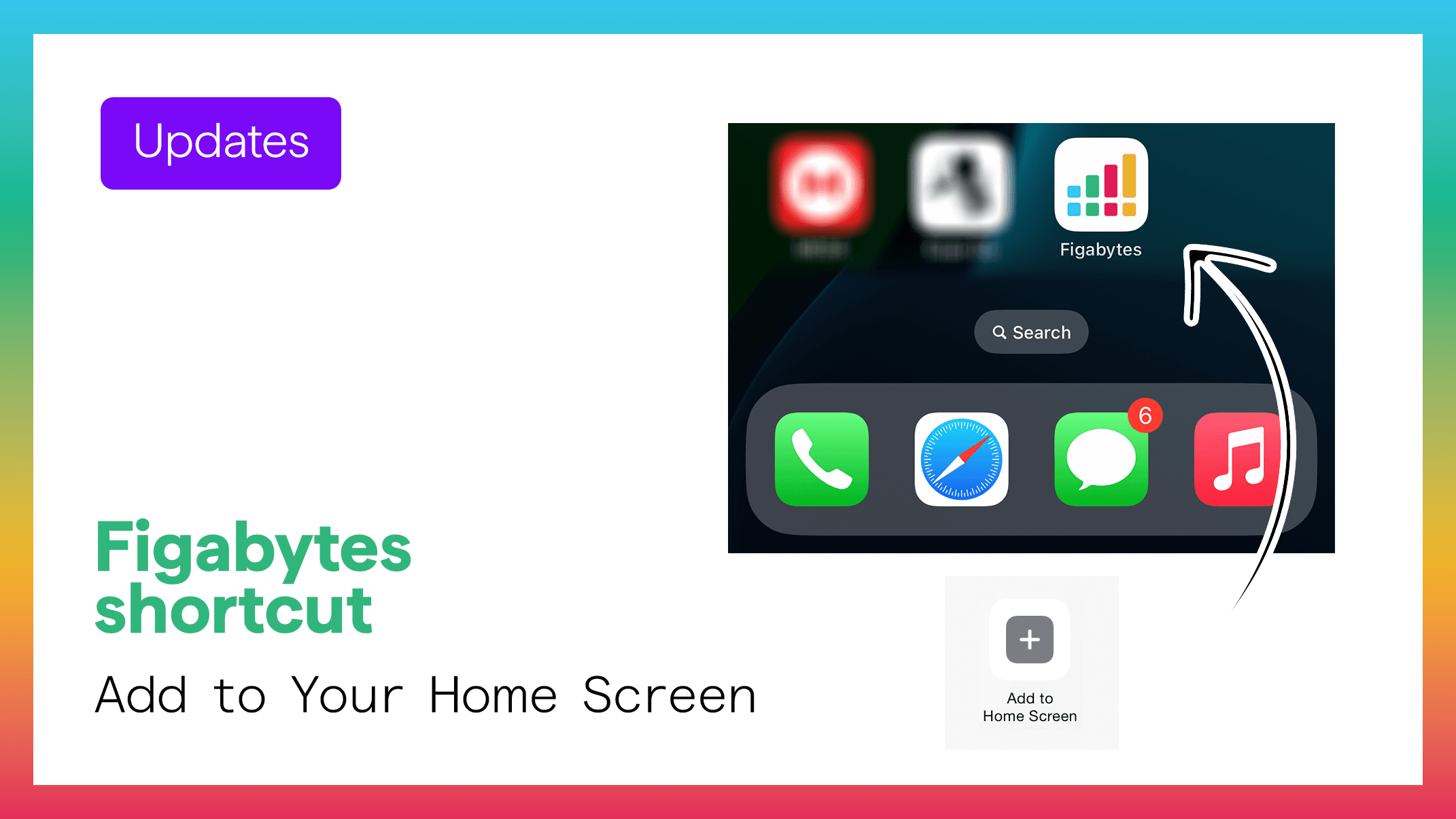
Step 1 — Open Safari and Visit Figabytes
Open Safari and go to: 👉 https://figabytes.com
You should now see the Figabytes homepage in your browser.
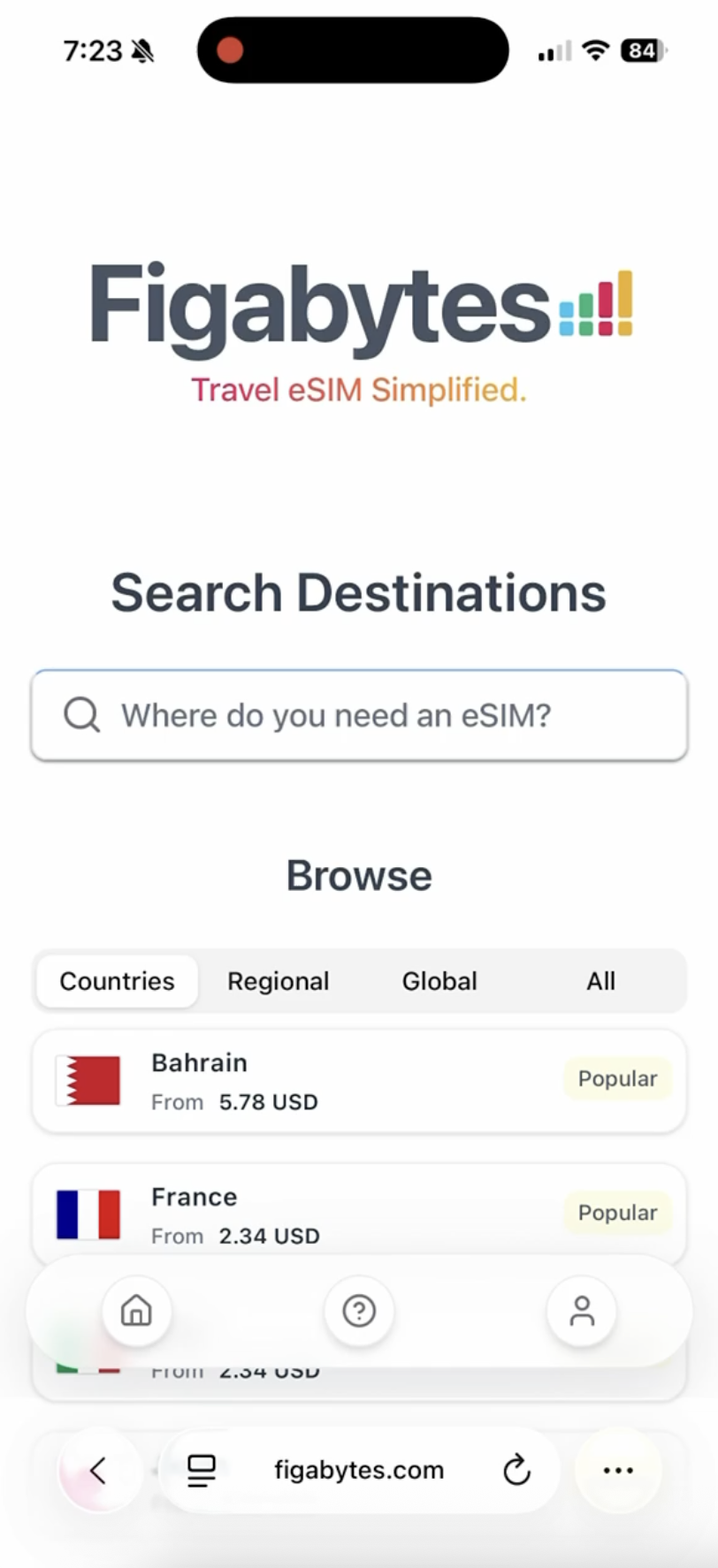
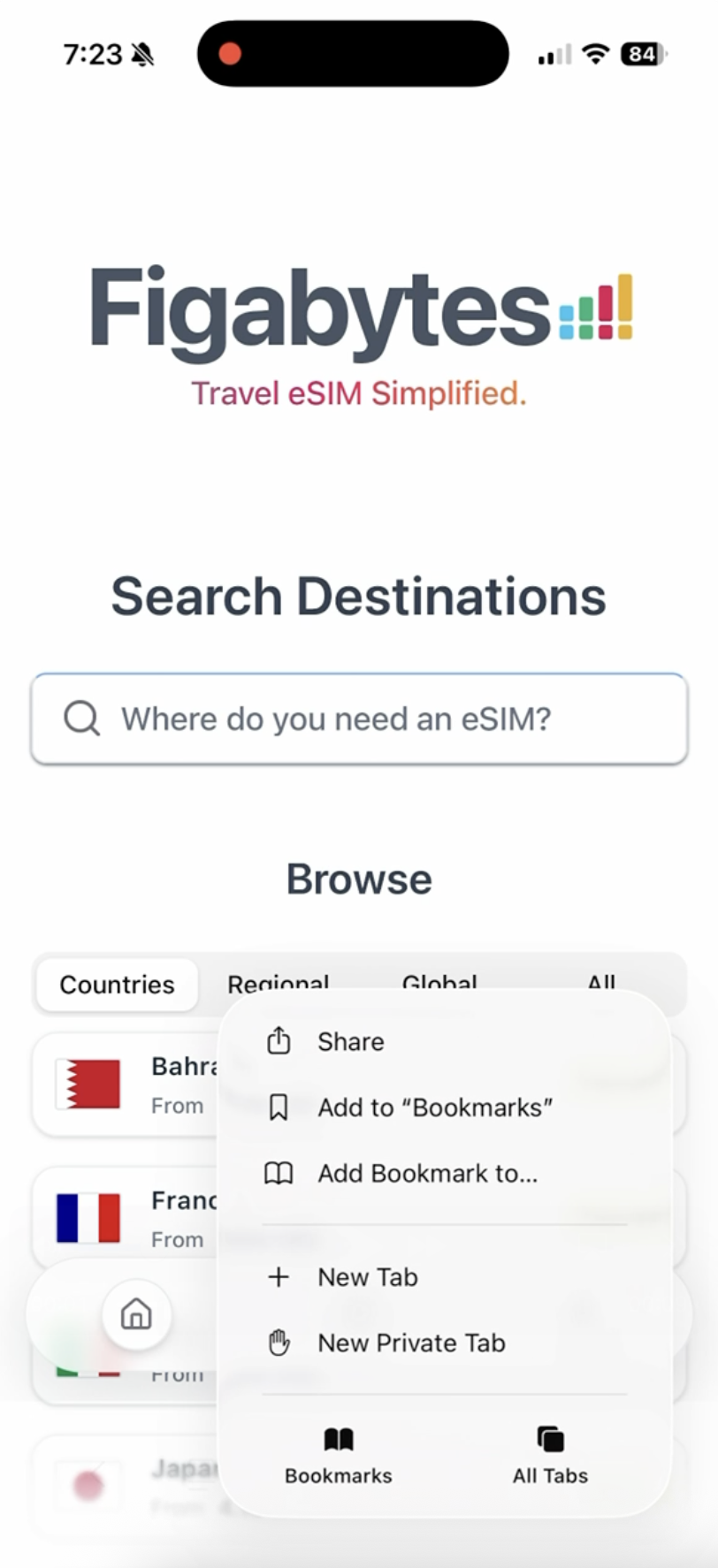
Step 2 — Tap the Share Icon
At the bottom of Safari, tap the Share button (the square with the upward arrow).
This opens the iOS share sheet with different sharing options.
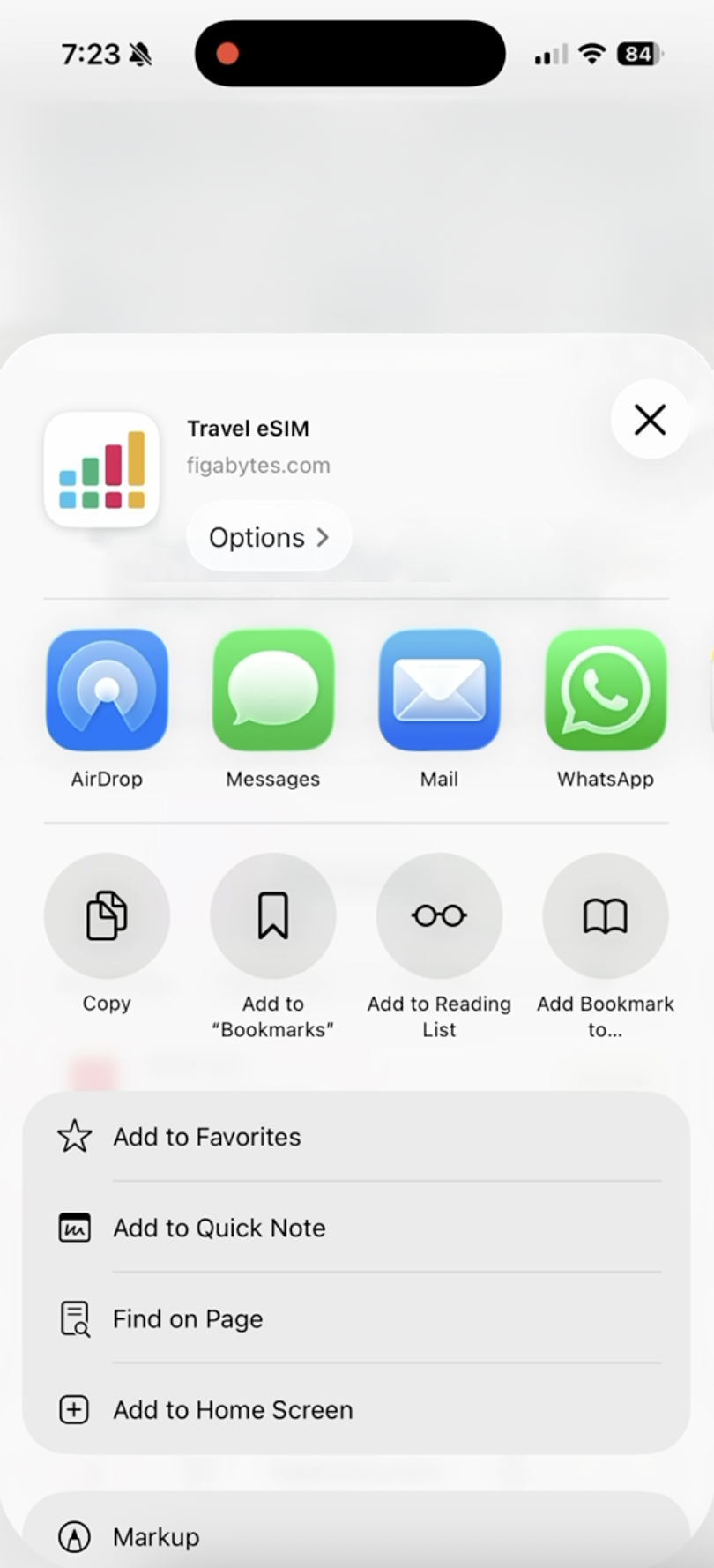
Step 3 — Swipe Up for More Actions
Swipe up on the share sheet to reveal more actions and shortcuts.
Here you’ll see AirDrop, Messages, WhatsApp, Mail, and other system functions.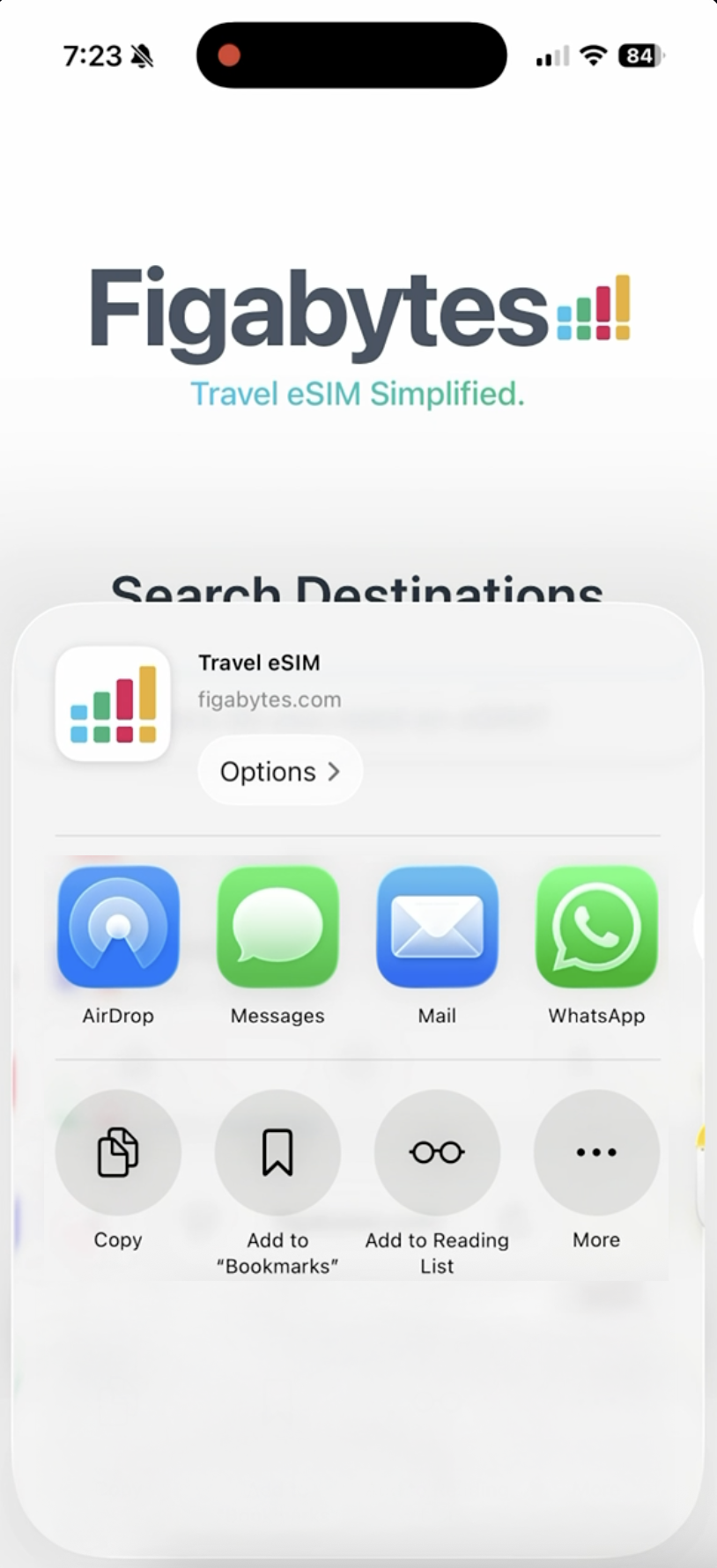
Step 4 — Select “Add to Home Screen”
Scroll down until you find the option Add to Home Screen.
Tap it to continue.
This opens the shortcut creation screen.
Step 5 — Review the Settings
On the preview screen, you’ll see:
The Figabytes logo
Shortcut name: Figabytes
The website link
A toggle option: Open as Web App → make sure this is ON
This ensures Figabytes opens in an app-like window without browser bars.
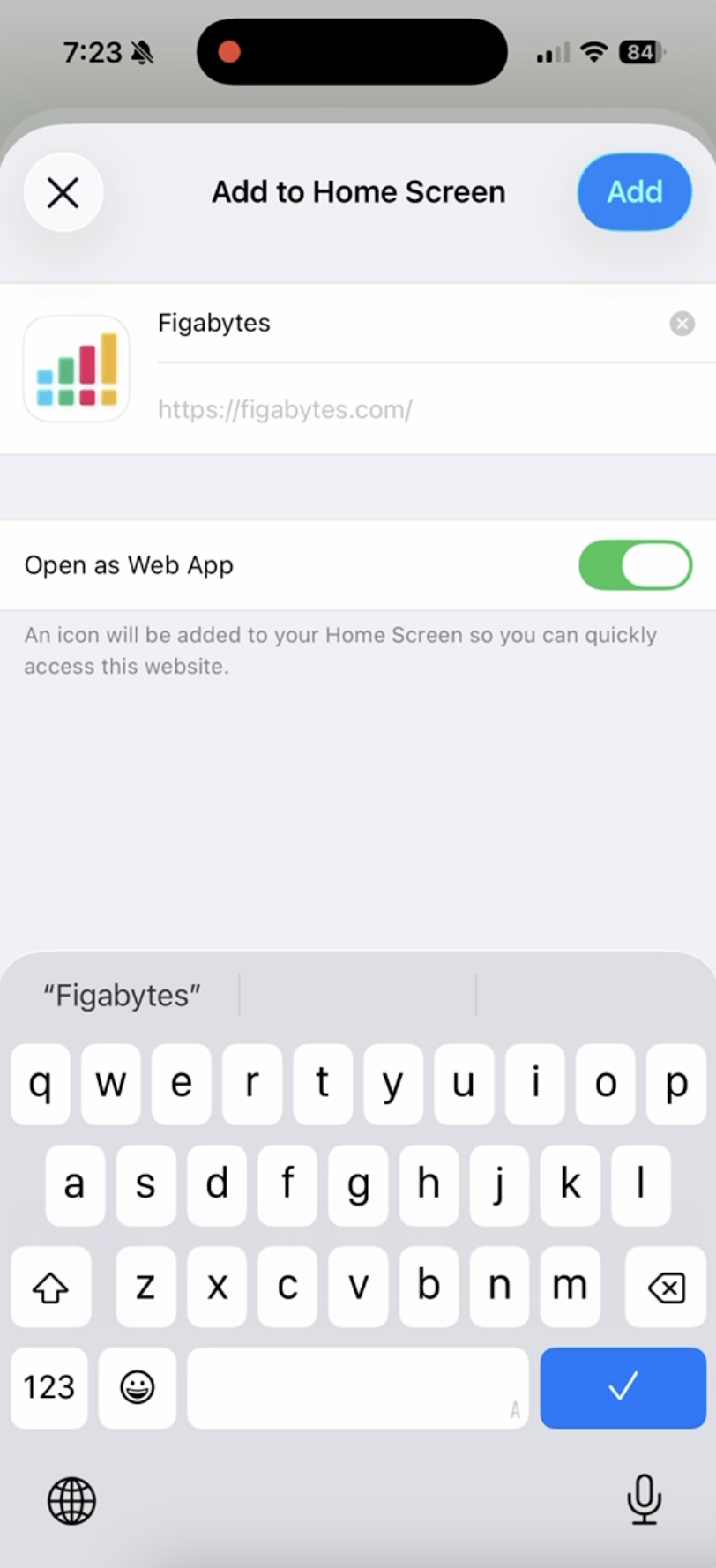
Step 6 — Tap “Add”
Tap Add in the upper-right corner.
Your iPhone will instantly add the Figabytes icon to your Home Screen.
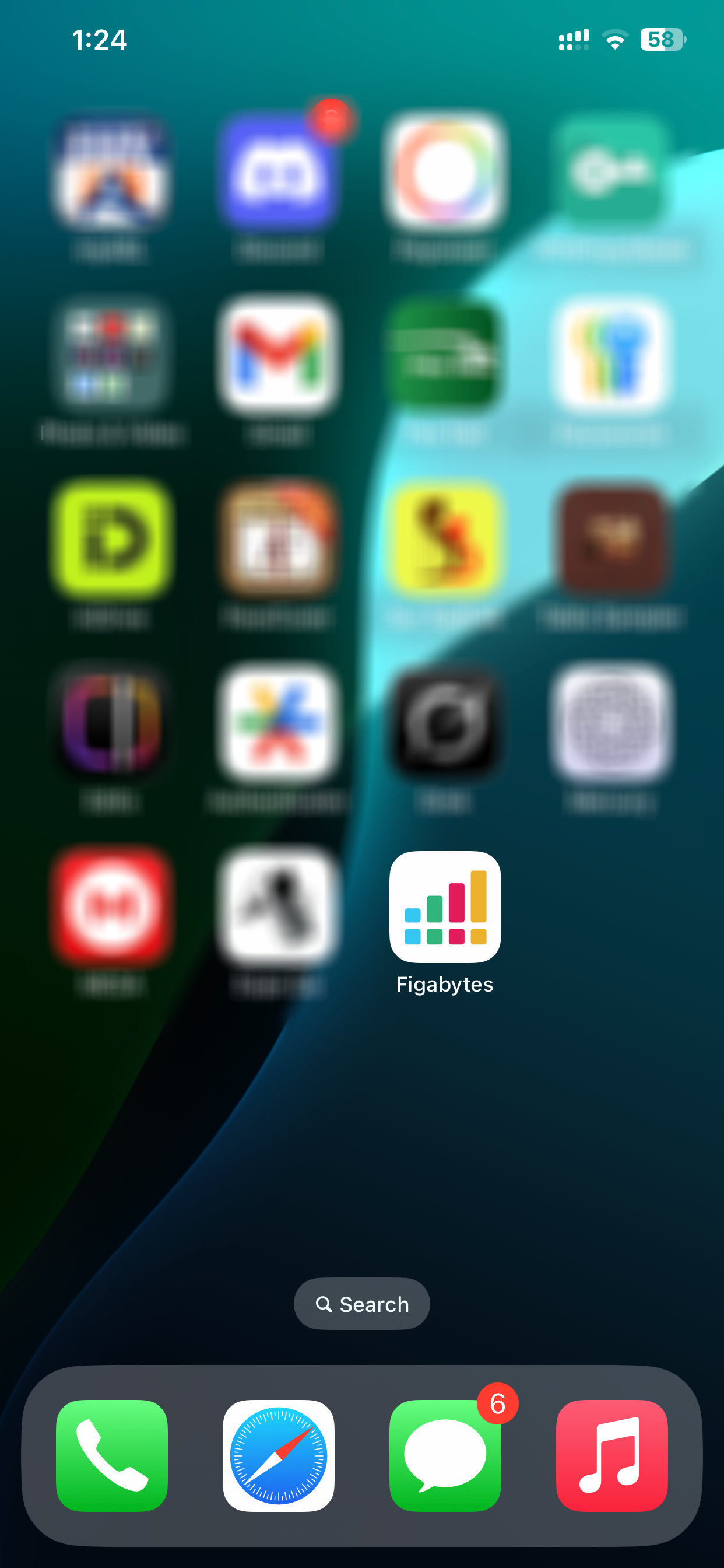
🎉 Final Result
You now have a Figabytes shortcut on your Home Screen — allowing you to:
Buy travel eSIMs faster
Access your dashboard instantly
View country plans in one tap
Prepare for your trip smoothly
It behaves exactly like a lightweight web app — perfect for travelers on the go.
Start exploring plans anytime: 👉 https://figabytes.com