
A simple guide to install and manage eSIM on iPhone
Apple has made it easier than ever to set up and manage eSIM on iPhone. Whether you are adding a new plan or preparing for travel, the process is now faster and more user friendly.
This guide walks you through setup, transfer basics, and how to use eSIM while traveling.
Ways to set up an eSIM on iPhone
Using a QR code
This is the most common method.
Steps:
- Open Settings
- Tap Mobile Data
- Select Add eSIM
- Tap Use QR Code
- Scan the QR code
- Follow the instructions
After installation, your eSIM is ready to use.
Using a direct install link
This is the fastest method.
Steps:
- Connect to Wi Fi
- Open the installation link
- Tap Add eSIM when prompted
- Wait for installation to complete
No scanning is needed.
Using manual details
If other methods fail:
- Go to Settings then Mobile Data
- Tap Add eSIM
- Select Enter Details Manually
- Add the required activation information
This option is useful in limited cases.
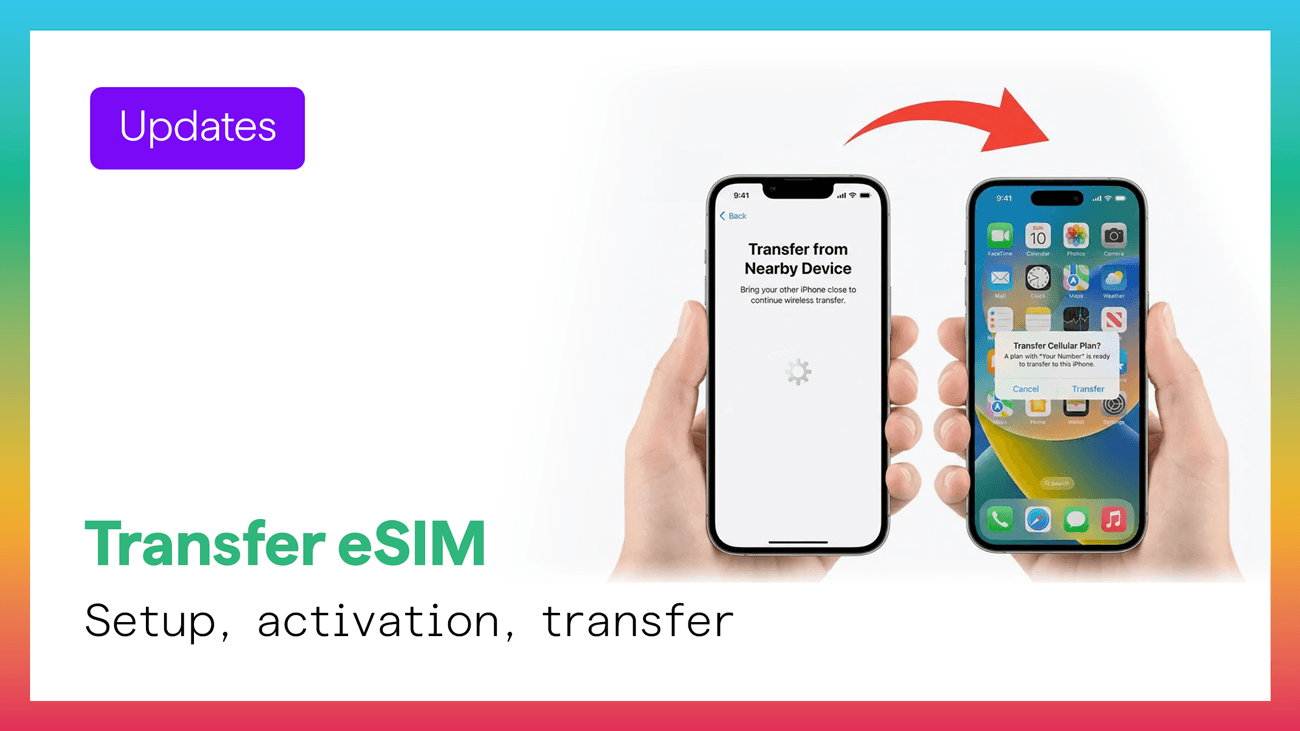
Can you transfer an eSIM between iPhones
Carrier eSIM transfer
If you are moving your main number to a new iPhone:
- Turn on the new device
- Follow setup steps
- Select Transfer SIM
- Approve on your old device
The process completes automatically.
Travel eSIM note
Travel eSIMs are usually linked to one device.
If you change your phone, you may need:
- A new installation
- A replacement activation
Always check your provider instructions.
How to use eSIM while traveling
Set your data line
After installation:
- Open Settings
- Go to Mobile Data
- Select your travel eSIM as the data line
Enable roaming when abroad
Turn on data roaming for your travel line to connect to local networks.
Keep your main number active
You can still:
- Receive calls
- Get messages
- Use verification codes
while using your eSIM for data.
Tips for smoother usage
Install before your trip
Set up your eSIM while connected to Wi Fi before you travel.
Label your lines
Use simple labels such as:
- Home
- Travel
This helps avoid confusion.
Check your settings after landing
Make sure:
- Your eSIM is active
- It is selected for data
- Roaming is enabled if needed
Common issues and fixes
No signal
- Restart your phone
- Toggle airplane mode
- Check if the eSIM line is active
No data connection
- Confirm the correct data line is selected
- Enable roaming if required
- Check APN settings if provided
Installation problems
- Use a stable Wi Fi connection
- Retry using a different method
- Restart the device
Why use eSIM for travel
eSIM offers a more flexible and modern way to stay connected.
You get:
- Faster setup
- No physical SIM handling
- Easier switching between plans
- Better travel convenience
Final thoughts
Setting up and managing eSIM on iPhone is now simple and efficient.
With the right preparation, you can stay connected anywhere without dealing with physical SIM cards or complex setup steps.