
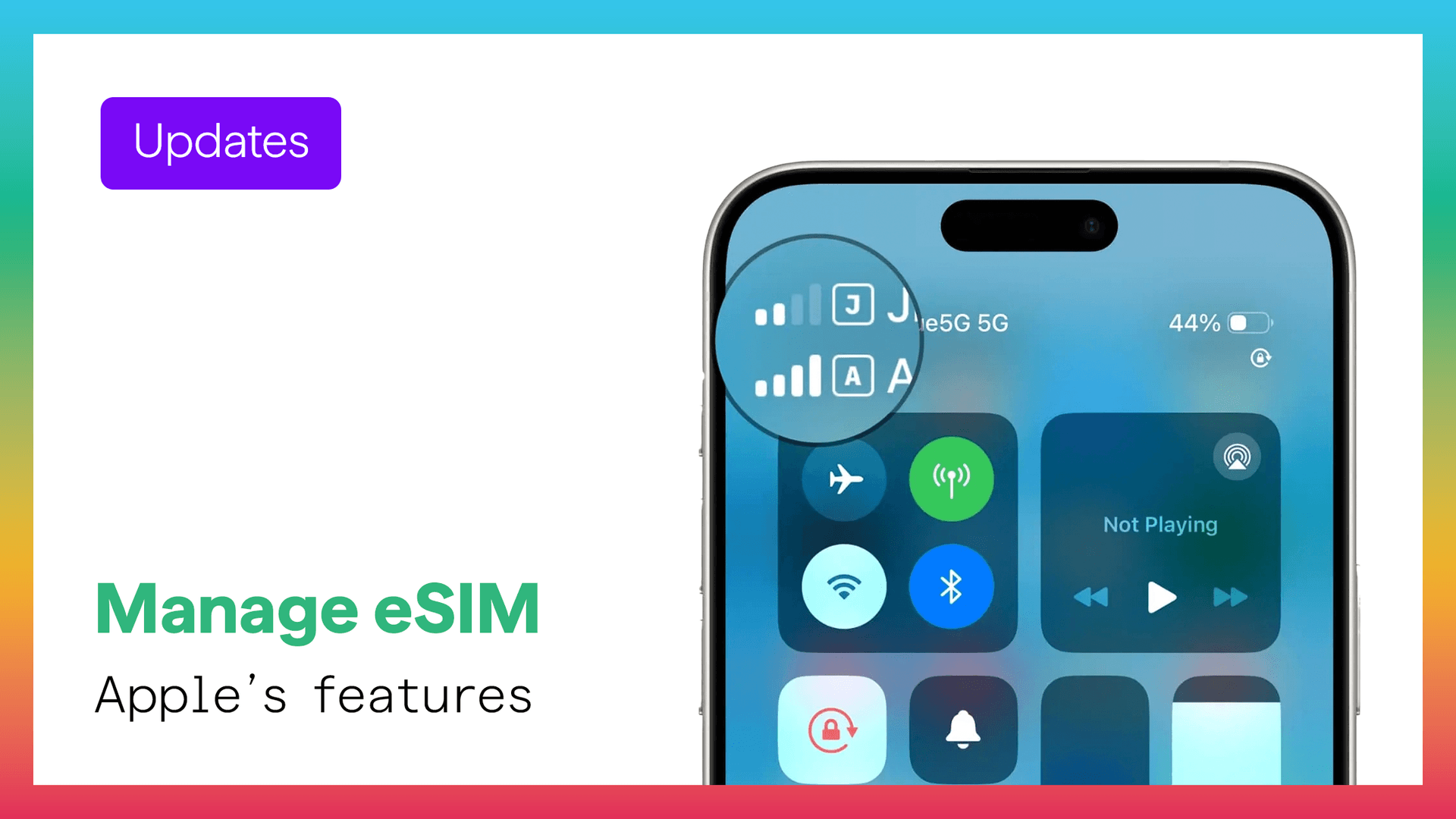
Full control over your mobile lines in one place
iPhone makes it easy to manage multiple mobile lines using eSIM. Whether you are switching between profiles, traveling, or just organizing your setup, everything is handled from one simple menu.
This guide explains how to view, switch, and customize your eSIM settings step by step.
Where to find your eSIM settings
Go to:
Settings → Mobile Data
Here you can see:
- All active eSIM lines
- Data usage per line
- Roaming settings
- Network status
You can tap any line to manage its settings.
How to switch between eSIM lines
If you have more than one line:
- Open Settings
- Tap Mobile Data
- Select Mobile Data Line
- Choose the eSIM you want to use
Your iPhone switches instantly without needing a restart.
Managing a travel eSIM
If you are using a travel eSIM:
Set it as your data line
Choose your travel eSIM for mobile data while keeping your main number active for calls and messages.
Enable data roaming
Turn on roaming for your travel eSIM to connect to local networks abroad.
Check connection status
You can see which network your phone is connected to directly inside the eSIM settings.
Customizing your eSIM lines
Each eSIM profile can be adjusted based on your needs.
Rename your lines
Use clear names such as:
- Home
- Work
- Travel
This helps you switch quickly without confusion.
Control network selection
You can choose:
- Automatic network selection
- Manual selection if needed
Adjust data mode
Select between different network modes to balance speed and battery usage.
Track data usage
Monitor how much data each eSIM is using directly from settings.
Turn a line on or off
You can disable a line temporarily without deleting it.
Security and SIM protection
You can add extra protection by enabling a SIM PIN.
Steps:
- Open Settings
- Tap Mobile Data
- Select SIM PIN
- Enable protection
This adds another layer of security to your mobile line.
Removing an eSIM
To delete an eSIM:
- Open Settings
- Tap Mobile Data
- Select the eSIM
- Tap Delete eSIM
Note that some eSIMs cannot be restored after deletion.
Common tips for better management
- Install your eSIM before traveling
- Keep your main number active for calls
- Use your travel eSIM for data
- Label your lines clearly
- Check your settings after landing
Why this matters
Managing eSIM settings properly helps you:
- Avoid roaming charges
- Stay connected without interruptions
- Switch between plans easily
- Control your data usage
Final thoughts
iPhone gives you full flexibility when it comes to managing eSIM profiles. With a few simple steps, you can control how your device connects at home or abroad.
Understanding these settings makes your experience smoother and more reliable.
Get started
Set up your travel connection and manage your data with ease.